WordPress
How to Connect Claude to Your WordPress Site With WPVibe (Free MCP Server)
In short
WPVibe is a free, open-source WordPress MCP server connecting Claude, ChatGPT, or Cursor to your site in under 60 seconds, with no API keys to manage.
Most WordPress AI plugins lock you into one bundled model and one prompt box. WPVibe does the opposite: install a single free plugin and Claude, ChatGPT, Cursor, or any MCP-compatible AI assistant can manage your entire WordPress site directly, no copying API keys, no wrestling with credentials. I connected it to a test site this week and had Claude publishing a post and editing a theme file inside three minutes.
Key takeaways
- WPVibe is a free, open-source MCP (Model Context Protocol) server for WordPress that connects any MCP-compatible AI assistant instead of locking you into one bundled model.
- Setup takes under 60 seconds: install the plugin, click the authorization link in your dashboard, and approve the connection.
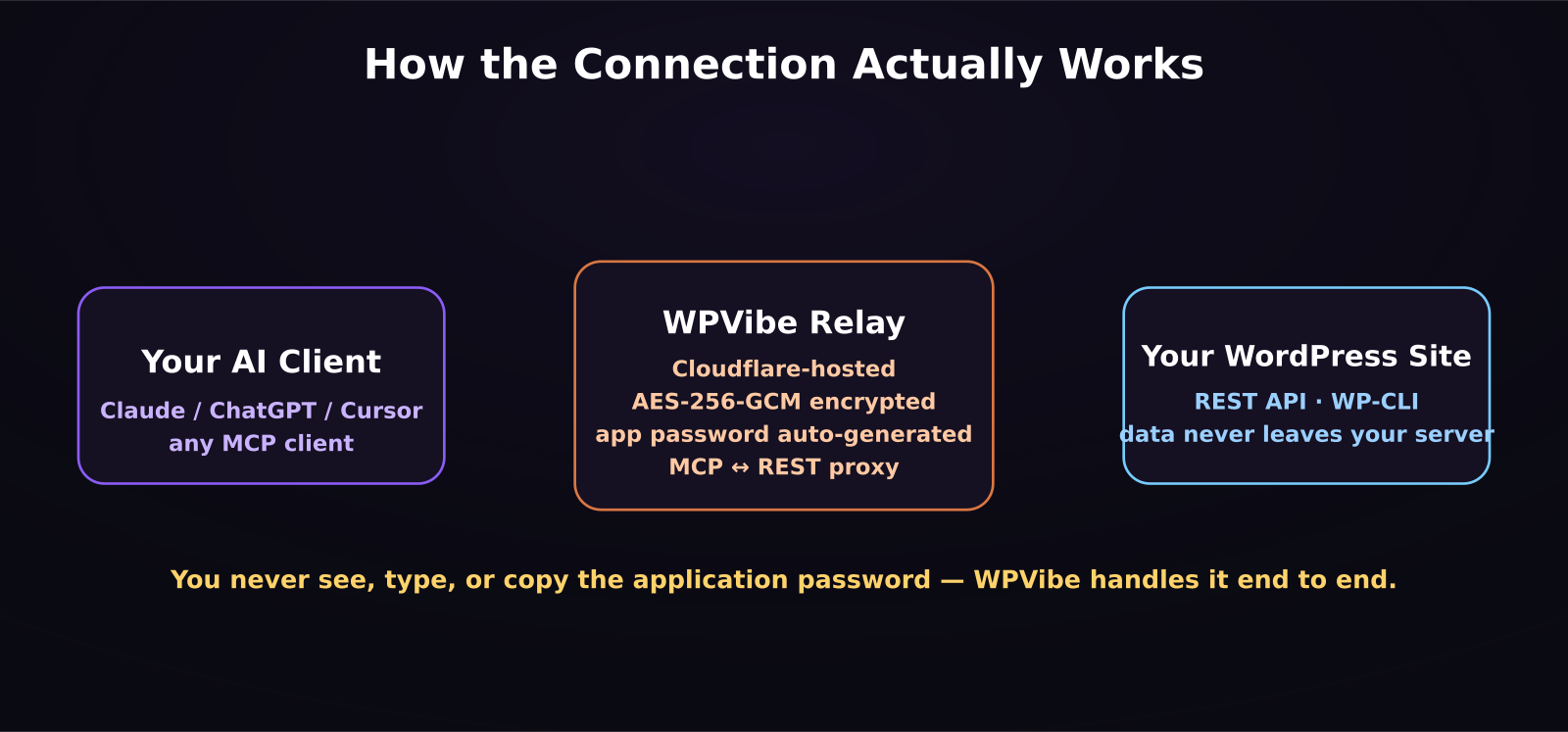
- WPVibe generates and encrypts the WordPress application password for you with AES-256-GCM, so you never see, type, or copy a credential yourself.
- Once connected, your AI can manage content, run more than 40 WP-CLI commands, upload media, inspect site health, and edit theme files through plain language.
- Your WordPress content stays on your own server; WPVibe's relay only proxies authenticated requests to your existing REST API, it doesn't process or store your content itself.
What exactly is WPVibe, and how is it different from AI Engine?
WPVibe, listed on WordPress.org as Vibe AI, is a complete MCP server implementation built for WordPress by the team behind SeedProd. The Model Context Protocol, introduced by Anthropic and now adopted broadly across the AI industry, gives AI assistants a standard way to discover and call tools on connected services. In practice, that means your AI client doesn't just chat about your WordPress site, it can actually take actions on it: publish a post, upload an image, run a WP-CLI command, or edit a template file.
That's the key difference from bundled-AI plugins like AI Engine, GetGenie, or WPCode AI. Those plugins ship one model and one prompt style baked into their own interface. WPVibe instead lets you bring your own AI and pick whichever one reasons best for the task at hand: Claude for long-form writing and careful theme edits, ChatGPT for research, Cursor for more code-heavy work, all connected through the same WordPress MCP server rather than three separate integrations.
How do you set up WPVibe in under 60 seconds?
The setup is deliberately minimal. Install the plugin from WordPress.org, and an authorization link appears in your dashboard. Click it, approve the connection, and WPVibe handles the rest behind the scenes: it generates a WordPress application password automatically, encrypts it with AES-256-GCM, the same authenticated encryption standard used across security-sensitive applications, and stores it on its Cloudflare-hosted relay servers. You never have to see, type, or copy the credential yourself, which removes the step where most people either give up or accidentally paste a key somewhere they shouldn't.
From there, you point your MCP-compatible AI client, Claude Desktop, Claude Code, ChatGPT, Cursor, Windsurf, or OpenCode, at the WPVibe connection, and it shows up as a tool the assistant can call. There's no separate API key to manage on your end beyond the one-time authorization.
Is it safe to give an AI direct access to your WordPress site?
This is the question worth sitting with before you connect anything. WPVibe is a relayed MCP service, not a direct database connection: your AI client talks to WPVibe's MCP server, which proxies authenticated requests to your WordPress REST API using the encrypted application password it generated. Your actual WordPress content, posts, pages, media, never gets processed or stored by WPVibe itself; it stays on your own server the entire time.
That said, giving any AI assistant write access to a live site is not a decision to make casually. I'd treat it the way you'd treat handing a junior developer FTP access: fine for a staging site or a project you're actively supervising, worth a second look before you let an agent loose on a production site with paying customers relying on uptime. The application-password model also means you can revoke access instantly from your WordPress dashboard if anything looks off, which is a meaningful safety net compared to plugins that store credentials less transparently.
What can you actually do with it once it's connected?
In my own test, the practical value showed up fastest in the boring, repetitive parts of running a WordPress site. I had Claude draft and publish a blog post end to end, upload and set a featured image, and then, separately, make a small CSS tweak to a theme file after I described what I wanted changed in plain language. WPVibe also exposes more than 40 WP-CLI commands, so an AI can check site health, manage plugins, or clear a cache without you opening a terminal.
For anyone building or maintaining WordPress sites as part of a broader SaaS or content workflow, the real win isn't any single action, it's not having to switch context between your AI assistant and the WordPress admin dashboard fifteen times an hour. If you're already using Claude Code or a similar assistant for other parts of your stack, WPVibe closes the gap between "I described what I wanted" and "it's live on the site" without you touching a REST API request or an FTP client.
How does this fit into a real content workflow?
Picture the last time you finished editing a video script or a tutorial outline and then had to log into WordPress separately to actually publish it, resize an image, tag it correctly, and check that the featured image looked right. WPVibe collapses that into the same conversation you were already having with your AI assistant. You describe what you want, it calls the WordPress tools directly, and you review the result instead of performing each step by hand. For a solo creator or a small team publishing several posts a week, that adds up to real time back, not just a novelty demo.
It's also worth noting what WPVibe doesn't try to be. It isn't a content generator, a design tool, or an SEO plugin, it's the connective layer that lets whichever AI you already trust reach into WordPress and act. That's a narrower, more composable job than the all-in-one AI plugins, and it's exactly why it's worth having installed even if you keep using a separate tool for the actual writing or image generation.
Frequently asked questions
Is WPVibe free?
Yes. WPVibe is free and open-source, available directly from the WordPress.org plugin directory. There's no paid tier required to connect an AI assistant to your site.
Does WPVibe work with ChatGPT and Cursor, not just Claude?
Yes. WPVibe works with any MCP-compatible client, including Claude Desktop, Claude Code, Claude on the web, ChatGPT, Cursor, Windsurf, and OpenCode. You aren't locked into a single AI provider.
Can WPVibe edit my theme files directly?
Yes, theme editing is one of its supported actions, alongside content management, media uploads, WP-CLI commands, and site health checks. Because of that, it's worth testing on a staging site first if you're not actively supervising the session on production.
Was this article helpful?
Jorge Aguilar
Founder & Creator, SaaS Master
Producing SaaS and AI product videos since 2019 — 800+ videos for 200+ brands, covering tutorials, demos, walkthroughs, and explainers. Writing here about the tools, trends, and tactics that actually move the needle. LinkedIn · About · Work with me
Want your product explained this clearly — in video?
Tutorials, walkthroughs, reviews, and shorts for SaaS, AI, and WordPress products.
Work With SaaS Master