How to Script a Software Walkthrough Video (Step-by-Step)
In short
Learn how to script a software walkthrough video: a two-column framework for click-level actions, narration timing, ideal length, and recording specs.
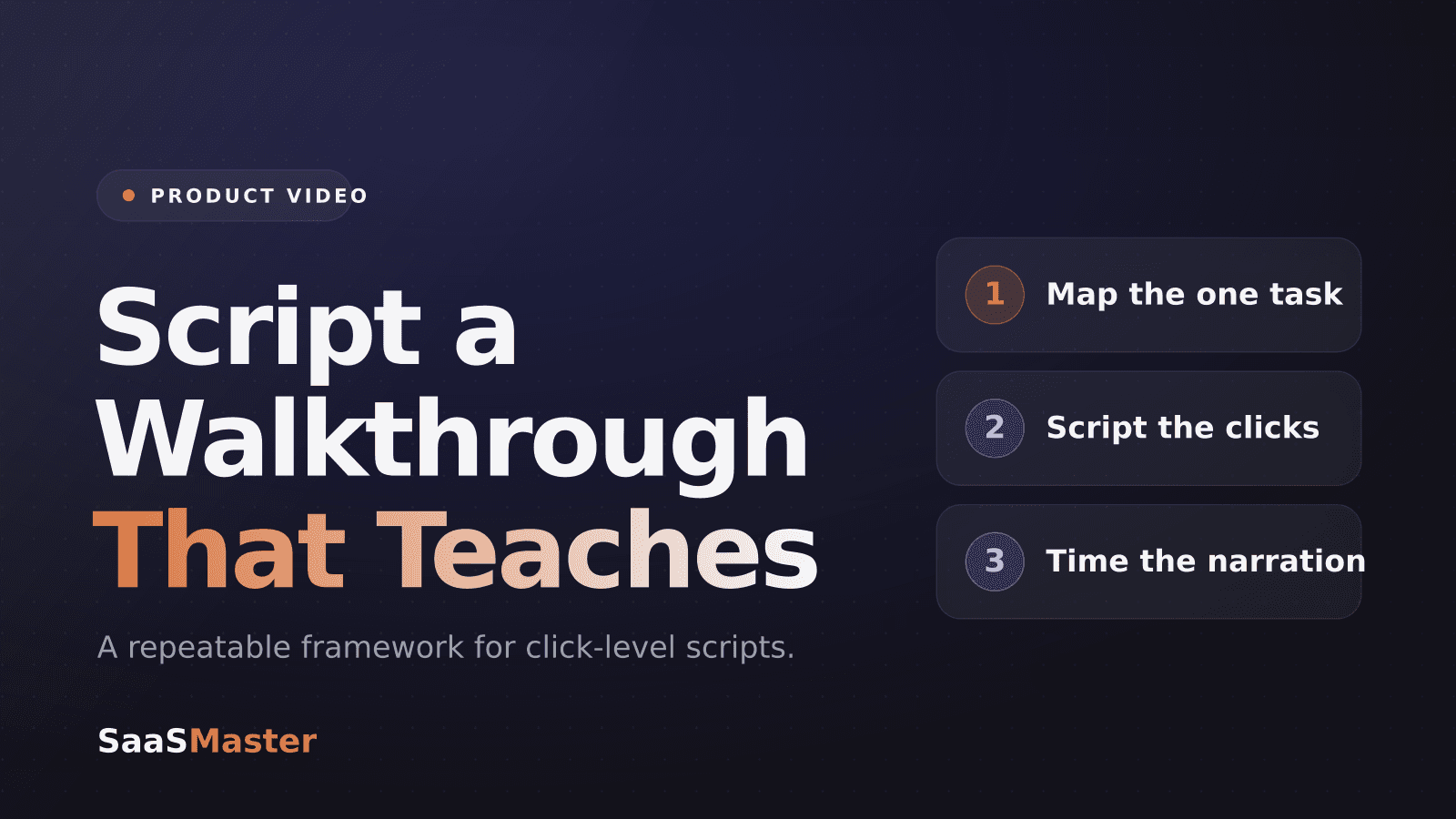
A software walkthrough video works when the narration and the clicks move as one — which is exactly why you script it before you record, not after. The fastest path to a walkthrough that actually teaches is a two-column script: the on-screen action on the left, the words you will say on the right, all built around a single task. Do that and you turn a feature that confuses people into something a viewer can copy on their first try. Here is the framework I use to script walkthroughs that teach instead of overwhelm.
Key takeaways
- Write a two-column script — the on-screen action on the left, the narration on the right — so your words land the moment the cursor does.
- One walkthrough, one task. A single, well-defined goal per video is the biggest quality lever you have.
- Keep a single-task walkthrough under three minutes, and break anything longer into separate lessons.
- Script talking points, not a word-for-word monologue, so you stay conversational and easy to follow.
- Record at 1080p and 30 frames per second so on-screen text stays sharp and the file stays manageable.
What is a software walkthrough video, and how is it different from a demo?
A walkthrough shows a viewer how to complete one specific task inside your product, step by step, usually as a screen recording with voiceover. A demo sells the outcome; a walkthrough teaches the mechanics. If a demo answers "why should I care about this?", a walkthrough answers "okay, how do I actually do it?"
That difference changes how you script. A demo can move fast and skip steps because it is building desire. A walkthrough cannot skip a single click, because someone is following along in their own account with their own data. If you are still deciding which format the moment calls for, my guide to product demo videos that convert is a useful companion, and the complete SaaS video marketing strategy guide shows where each video type sits in the buyer journey. Once you know it is a walkthrough, the script is where the real work begins. You can find more of these guides in the product video library.
Why does a walkthrough need a script at all?
Because the difference between a helpful walkthrough and a frustrating one is timing. Narration works when the words and the on-screen events are synchronized — when you say "click Save" at the exact moment the cursor reaches the Save button, not three seconds early and not after the click already happened. You cannot improvise that reliably. A script is what lets you rehearse the workflow, cut the "umms," and hit those marks on the take.
A script also forces you to make a decision most creators skip: what is this video actually about? Rambling walkthroughs almost always come from an unscripted recording where the creator wandered into three adjacent features. Writing it down first keeps you honest about scope.
How do you structure a walkthrough script?
I break every walkthrough script into three passes. Do them in order and the video almost edits itself.
Step 1 — Map the one task
Write the finished outcome at the top of the page in plain language: "By the end, the viewer has connected their Stripe account and sent a test invoice." If you cannot state the outcome in one sentence, the video is trying to do too much. Split it. A viewer who needs to rewatch one step should never have to scrub past an unrelated topic to find it.
Step 2 — Write the click-by-click actions
Now list every action a viewer takes, in order, as short imperative lines: open Settings, choose Billing, click Connect Stripe, and so on. This is your visual track. It keeps your recording focused and makes editing far easier, because each line maps to a clean moment you can trim to.
Step 3 — Add narration that explains judgment, not clicks
Here is the mistake that makes tutorials painful to watch: every sentence starts with "click." Use the screen to show the mechanics and the words to explain the judgment. Instead of "click Settings, then click Billing," say "Billing lives under Settings — that trips people up, so start there." You are narrating the why, not reading the buttons out loud. When a product is genuinely complex, this is the skill that carries the video; my guide on explaining complex software without losing buyers goes deeper on that balance.
What should each line of your script actually contain?
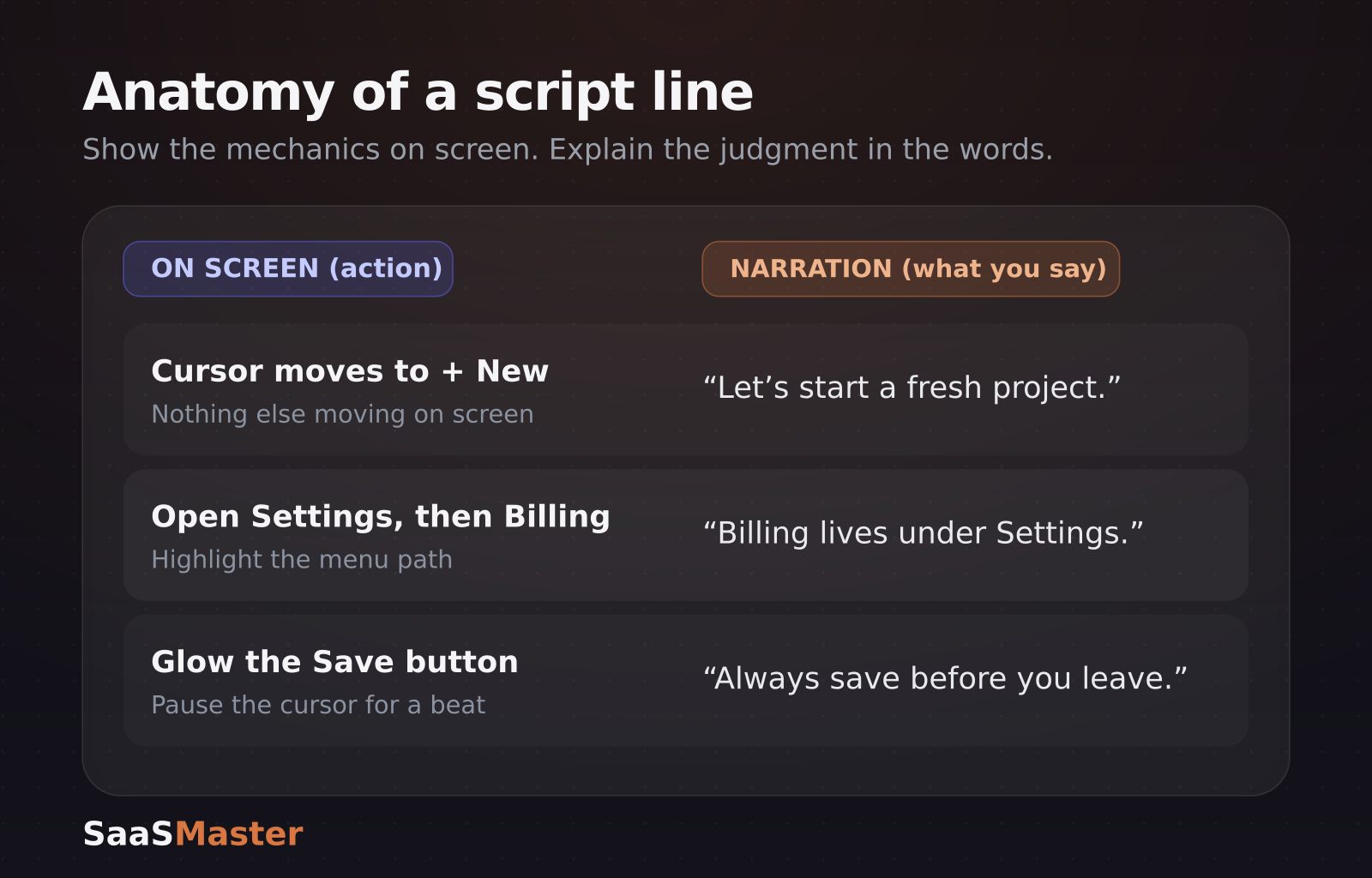
Lay the script out in two columns. The left column is what happens on screen; the right column is what you say. Keeping them side by side is the single best trick for tight synchronization, because you can see at a glance whether your words and your cursor are describing the same moment.
A few lines might look like this. On screen: "cursor moves to + New." Narration: "Let's start a fresh project." On screen: "open Settings, then Billing." Narration: "Billing lives under Settings, right here." On screen: "highlight the Save button, pause a beat." Narration: "Always save before you leave this page." Notice the narration never just labels the click — it adds a reason, a warning, or a bit of context the screen alone cannot convey.
Write these as talking points, not a rigid paragraph you read aloud. A script should guide you, not control every word. Reading verbatim is what makes narration sound robotic; loose talking points keep you sounding like a person who knows the product.
How long should a software walkthrough be?
For a single task, aim for under three minutes. Surveys consistently show most people prefer video for learning a software workflow, but that preference has limits — a fifteen-minute recording that wanders through five unrelated tasks tests them quickly. The fix is not to talk faster; it is to cover one concept per video and let a short series do the heavy lifting.
If your workflow genuinely needs ten minutes, that is a signal to break it into a playlist: "Connect your account," "Create your first project," "Invite your team." Each becomes independently searchable, easier to update when the UI changes, and far more likely to be watched to the end.
What recording specs should you script around?
Scripting and recording settings are connected, because some script decisions (a cursor pause, a zoom on small text) only work if the capture is clean. Plan around these defaults:
- Record at 1920x1080 (1080p) or higher so on-screen text stays crisp and readable.
- Use 30 frames per second — the sweet spot for screen content, smooth to the eye without bloating the file.
- Target a 6 to 10 Mbps bitrate for 1080p30, which matches common upload recommendations.
- Use an external microphone, not your laptop's built-in one; audio quality is what viewers notice first.
- Set up a clean demo account and silence notifications before you hit record.
If you would rather hand the whole thing off — script, record, edit, captions — that is exactly the work I do for software teams. You can see how I approach it on the software walkthrough videos page.
Frequently asked questions
How detailed should a walkthrough script be?
Detailed on actions, loose on wording. List every click precisely so nothing gets skipped, but keep the narration as talking points rather than a word-for-word script. That combination keeps the video accurate and the delivery natural.
Should I show my face in a software walkthrough?
It is optional. A small webcam bubble can build trust and warmth, especially in onboarding content, but the screen is the star. If a talking head ever competes with the interface for attention, drop it — clarity of the workflow always wins.
How many walkthrough videos does a SaaS product need?
Start with the handful of tasks that create the most support tickets or block activation, and script one focused video for each. A library of five to ten sharp, single-task walkthroughs will serve users far better than one sprawling product tour.
Was this article helpful?
Jorge Aguilar
Founder & Creator, SaaS Master
Producing SaaS and AI product videos since 2019 — 800+ videos for 200+ brands, covering tutorials, demos, walkthroughs, and explainers. Writing here about the tools, trends, and tactics that actually move the needle. LinkedIn · About · Work with me
Need a product demo, walkthrough, or SaaS explainer?
Client-owned videos that make your product easy to understand — demos, walkthroughs, onboarding, and explainers.
Explore SaaS video productionRelated guides
More Product Demos & Video Marketing →
SaaS Product Video Brief Template for Marketing Teams
What Does SaaS Video Production Cost?

Where SaaS Companies Should Use Product Videos: Website, Sales, Onboarding, and Ads