How to Connect Claude or ChatGPT to Your WordPress Site with MCP (WPVibe Guide, 2026)
In short
How WPVibe's MCP plugin lets Claude or ChatGPT edit WordPress directly, what it costs, and the security guardrails to know first.
A new WordPress plugin called WPVibe now lets Claude, ChatGPT, or Cursor edit your WordPress site directly from a chat window — creating posts, swapping theme settings, even redesigning a page — without you touching wp-admin. It's built on the Model Context Protocol (MCP), it's free to start, and after testing it this week, here's exactly how it works and where the guardrails are.
If you've been copy-pasting content into WordPress by hand while your AI assistant sits in a separate window, this closes that gap. But "AI can edit your site" is also the kind of sentence that should make you ask about security before you ask about features — so that's where we'll start.
Key takeaways
- WPVibe (listed on WordPress.org as "Vibe AI") is a free MCP server plugin from SeedProd that connects Claude, ChatGPT, Cursor, Windsurf, or any MCP-compatible AI client to a self-hosted WordPress site.
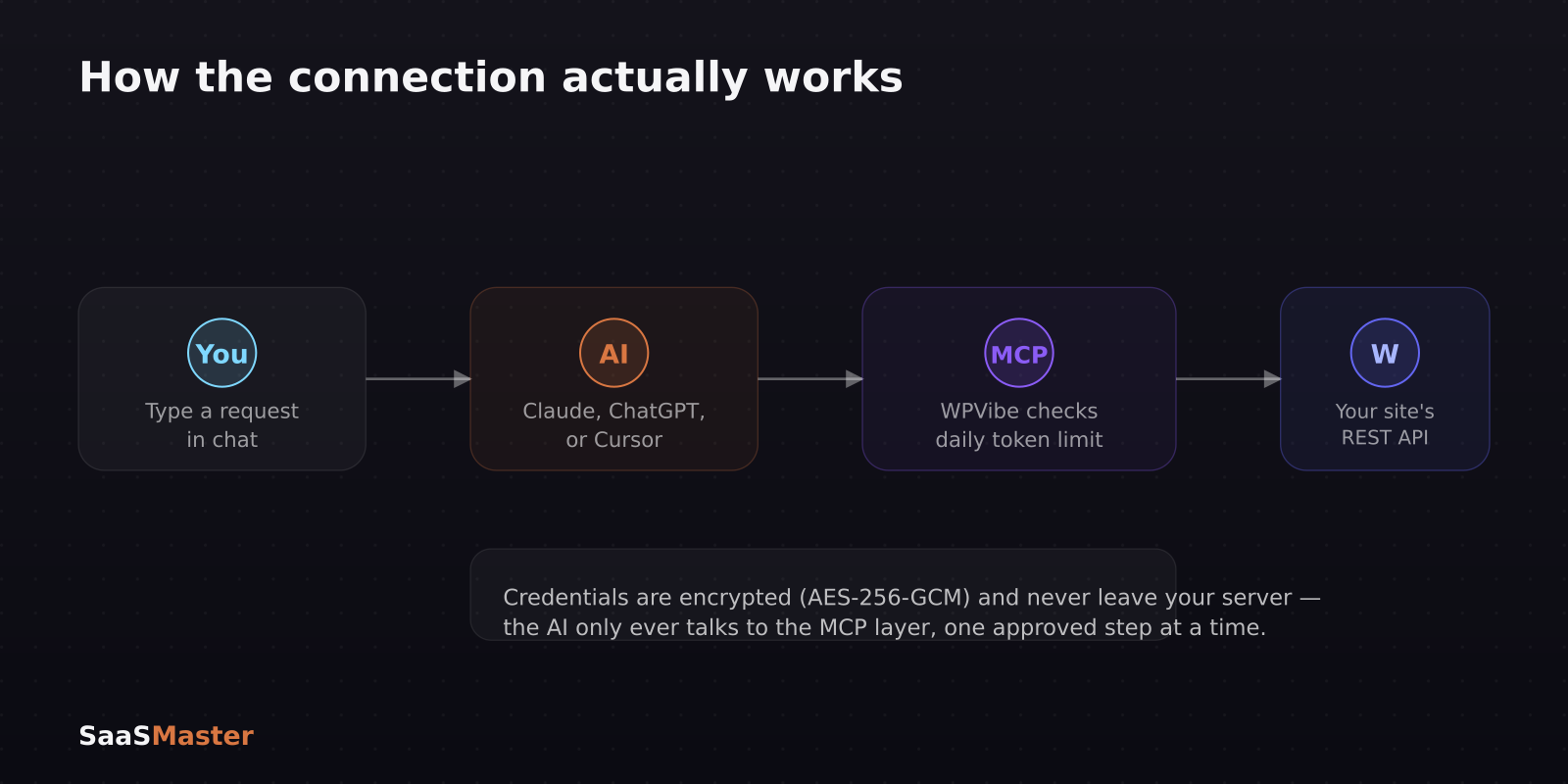
- It handles authentication and encrypts credentials with AES-256-GCM — the AI never sees your raw WordPress login, it talks through the MCP layer instead.
- A built-in daily token limit stops the agent from running unsupervised overnight; it works step by step in your chat session, with you watching.
- "Surgical edits" mean the AI describes just the specific change it wants to make, which is applied directly on the server — large database fields don't get shipped back and forth through the AI itself.
- It's a stopgap for a bigger shift: WordPress Core's own AI team is building a native "AI Prompt Bar," with WordPress 7.1 hitting Beta 1 on July 15, 2026 and final release August 19, 2026.
What is WPVibe, exactly?
WPVibe is an MCP server for WordPress — MCP (Model Context Protocol) is the open standard that lets an AI assistant call tools on an external system instead of just generating text. Install the plugin, connect it to Claude, ChatGPT, Cursor, or Windsurf, and your AI gains the ability to create and edit posts, pages, media, comments, users, and taxonomies through WordPress's full REST API. It can also manage plugins, themes, site options, cache, and rewrite rules — essentially anything you could do by hand in wp-admin, now reachable from a chat window.
It's built by SeedProd, the team behind the popular drag-and-drop WordPress builder, and it's also distributed on WordPress.org under the name "Vibe AI."
Is it actually safe to let an AI touch your live site?
This is the right question to ask before installing anything that can edit a production website, and WPVibe's design choices are worth understanding rather than taking on faith.
Credentials are encrypted with AES-256-GCM, and the plugin relays your AI's tool calls to the WordPress REST API rather than handing the AI a standing login. There's a separate daily token limit built into the plugin itself, specifically so the agent "can't wander off and burn money in the background" — it's designed to work step by step in your chat, with you present, not autonomously overnight.
The other detail that matters for anyone nervous about database bloat or accidental data leaks: WPVibe recently added "surgical edits," where the AI describes just the specific change it wants and that change is applied directly on the server, so large database fields never actually travel through the AI model itself. That's a meaningfully different security posture than a workflow where an AI reads and rewrites your entire database in its own context window.
How do you actually set it up?
The practical setup is short:
- Install WPVibe (or "Vibe AI") from the WordPress.org plugin directory or through wp-admin's plugin search, the same as any other plugin.
- Activate it and follow the connection prompt, which generates the credentials your AI client needs.
- In Claude, ChatGPT, Cursor, or Windsurf, add WPVibe as an MCP server using the connection details the plugin provides.
- Start a chat and ask for something concrete and low-risk first — draft a blog post, update a page's meta description, or adjust a widget — rather than jumping straight to a full redesign.
One feature worth knowing about before your first session: Live Reload. Every change your AI makes automatically refreshes your site's front end and sends a notification in wp-admin with a direct link to what just changed, so you're not left guessing whether something actually happened.
What does it cost?
WPVibe has a free tier that doesn't require a credit card — it comes with a lighter daily usage allowance but the full feature set, so you can genuinely test it before paying for anything. Paid tiers raise the daily usage ceiling and add priority support, which matters more once you're using it for daily content work rather than occasional edits.
Where does this fit if you're already using WordPress AI tools?
If you're already comparing page builders' native AI, like in our breakdown of Elementor AI vs. Divi AI, think of WPVibe as solving a different problem. Elementor's Angie and Divi's Quick Sites are AI built into the builder for page layout. WPVibe is a connector — it lets whichever AI assistant you already use for everything else (writing, planning, coding) also reach into WordPress directly, rather than making you switch tools to get AI help on your site.
It also plugs neatly into the same automation mindset covered in our Automation & No-Code hub: MCP is essentially a standardized way for AI to trigger real actions instead of just producing text you then have to paste somewhere yourself.
A creator's take: what stood out after using it
I make setup and walkthrough videos for WordPress products, so I've watched a lot of plugin onboarding flows, and the daily token limit is the detail I'd flag first — it's a small design choice, but it's the difference between "an assistant that helps you" and "an agent that can quietly rack up either cost or damage while you're not watching." The Live Reload notification is a nice touch for the same reason: you always get a receipt.
Where I'd be cautious: the same review data on the WooCommerce setup process applies here too — an AI editing your storefront or checkout flow directly is a different risk level than an AI drafting a blog post, so start with content and low-stakes settings before you hand over anything that touches payments or customer data. If you want your team or customers to actually understand a new workflow like this instead of just reading about it, that's the exact gap a short WordPress video production walkthrough is built to close.
For more on where WordPress's own AI roadmap is heading — including the native AI Prompt Bar due with WordPress 7.1 — our WordPress hub tracks these releases as they land.
Frequently asked questions
Do I need to know how to code to use WPVibe?
No. You install it like any WordPress plugin, connect it to an AI client such as Claude or ChatGPT, and then interact with it through normal chat — you describe what you want changed, and the AI executes it through the plugin.
Can WPVibe delete or break my site?
It can make real changes, which is why it's designed for step-by-step use rather than fully autonomous overnight runs, and why starting with low-risk edits (like drafting content) before trusting it with structural changes is the safer approach. Keeping regular backups is still standard practice with any tool that has write access to your site.
Is WPVibe the same as WordPress's built-in AI features?
No. WPVibe is a third-party MCP plugin that connects your own AI assistant to your site today. WordPress Core is separately building native AI tools, including an AI Prompt Bar, with WordPress 7.1 targeting Beta 1 on July 15, 2026 and a final release on August 19, 2026.
Was this article helpful?
Jorge Aguilar
Founder & Creator, SaaS Master
Producing SaaS and AI product videos since 2019 — 800+ videos for 200+ brands, covering tutorials, demos, walkthroughs, and explainers. Writing here about the tools, trends, and tactics that actually move the needle. LinkedIn · About · Work with me
Launching a plugin, theme, or WordPress product?
Client-owned videos that make your product easy to understand — demos, walkthroughs, onboarding, and explainers.
Explore WordPress video productionRelated guides
More WordPress & Website Tools →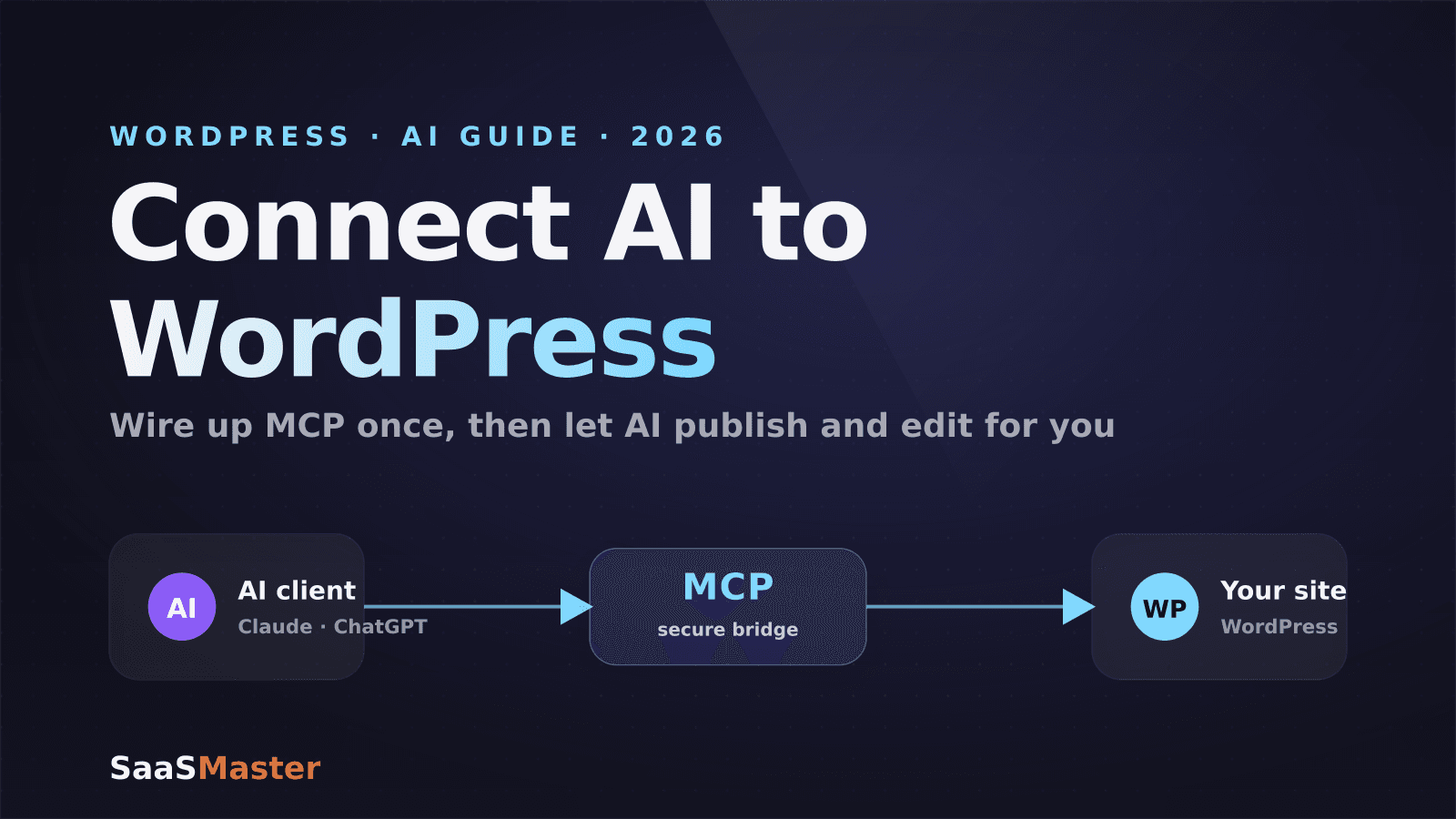
How to Connect AI to Your WordPress Site with MCP (2026 Guide)
How to Use Angie, Elementor's Free Agentic AI Plugin for WordPress
How to Make a WordPress Plugin Demo Video That Drives Adoption