How to Connect AI to Your WordPress Site with MCP (2026 Guide)
In short
How to connect AI to your WordPress site with MCP in 2026: set up WPVibe, link Claude or ChatGPT, keep it secure, and let AI publish and edit posts safely.
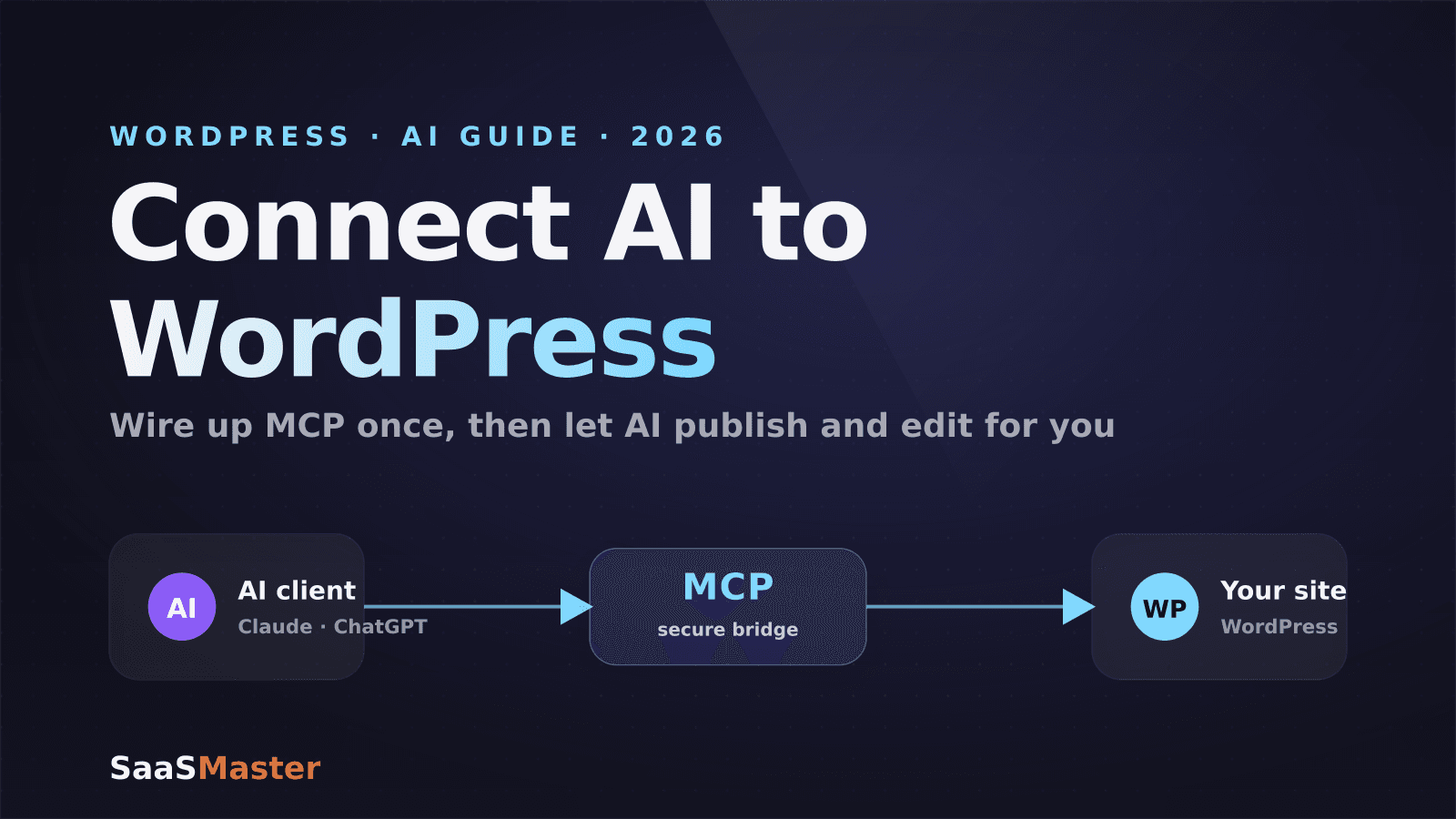
Yes — you can connect an AI assistant like Claude or ChatGPT directly to your WordPress site, and as of 2026 it takes about 30 seconds to set up. The bridge that makes it work is MCP, the Model Context Protocol, and the easiest on-ramp is a free plugin called WPVibe. Once it is connected, you can ask your AI to draft a post, schedule an article, reorganize categories, or update settings — in plain conversation, without copying a single password.
I run a WordPress site and make tutorials for a living, so anything that removes busywork gets my attention fast. This is one of those shifts. But letting an AI into your site also deserves a security-first setup, so I will cover both the how and the guardrails.
Key takeaways
- MCP (Model Context Protocol) is a shared standard that lets AI assistants talk to external tools; WPVibe brings it to self-hosted WordPress for free.
- WPVibe connects Claude, ChatGPT, Gemini, Cursor, Windsurf, and other MCP clients, and Claude's setup takes about 30 seconds.
- You never share a password — authorization happens through a one-click link, backed by a WordPress application password that requires HTTPS.
- Once connected, AI can draft, edit, schedule, and organize content through conversation instead of clicking around wp-admin.
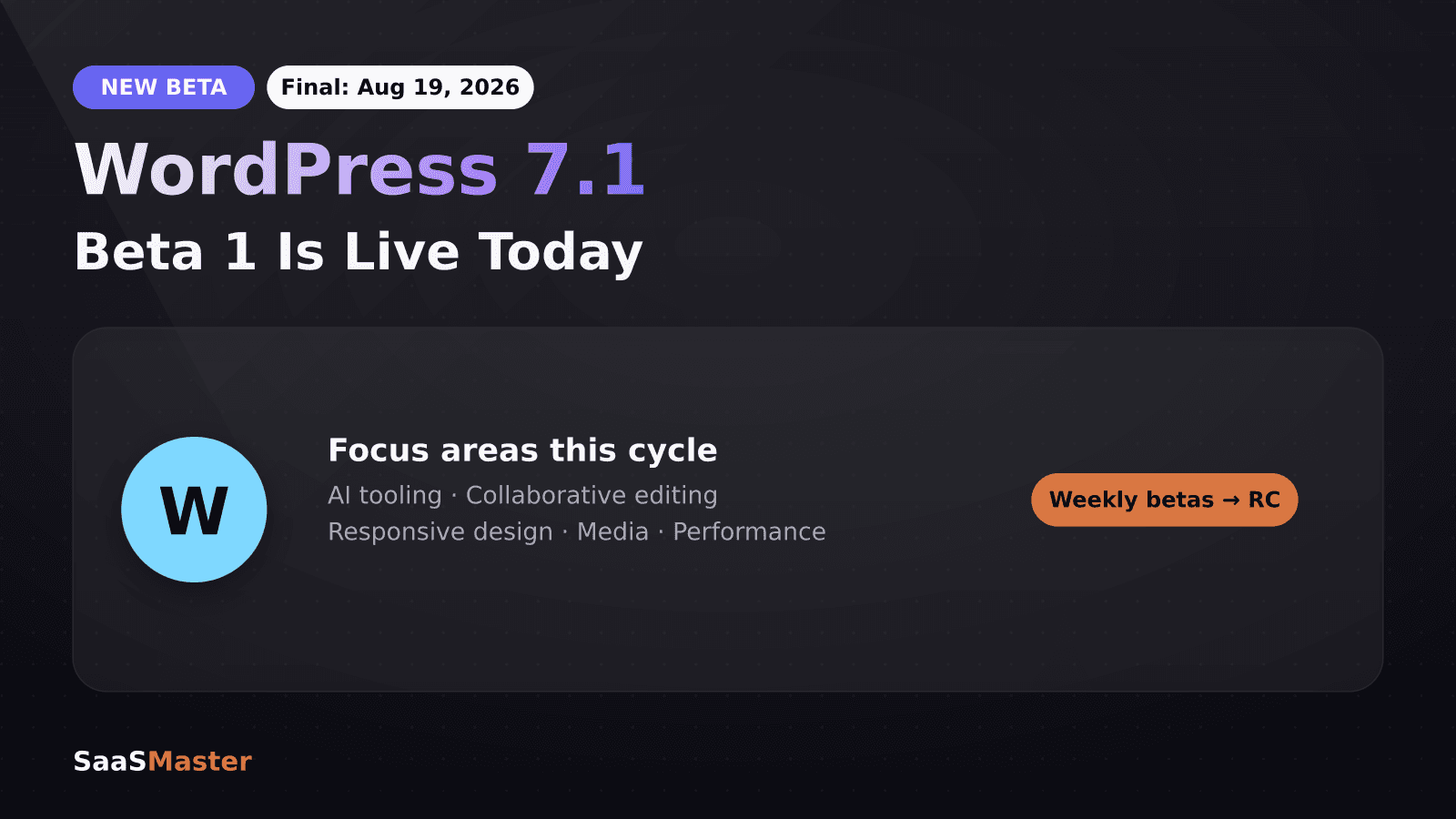
- WordPress 7.1, due August 19, 2026, adds native AI Client streaming and embeddings, so this capability is moving into core.
What is MCP, and why does it matter for WordPress?
MCP, the Model Context Protocol, is a shared language that lets an AI assistant securely call outside tools and services. Think of it as a universal adapter: instead of every AI app building a custom integration for every service, they all speak MCP, and any MCP-compatible tool becomes available to any MCP-compatible assistant.
For WordPress, that is a big deal. It means your site can become one of the tools your AI assistant is allowed to use — reading your posts, drafting new ones, tidying taxonomies — without you exporting content or pasting things back and forth. WordPress itself is moving in this direction: the foundations, a PHP AI Client and an MCP Adapter, landed in WordPress 7.0, and more is coming in 7.1.
How do you connect AI to WordPress with MCP?
The fastest path today is WPVibe, a free MCP server plugin from the team at Awesome Motive that turns your self-hosted site into an MCP endpoint. Here is the flow.
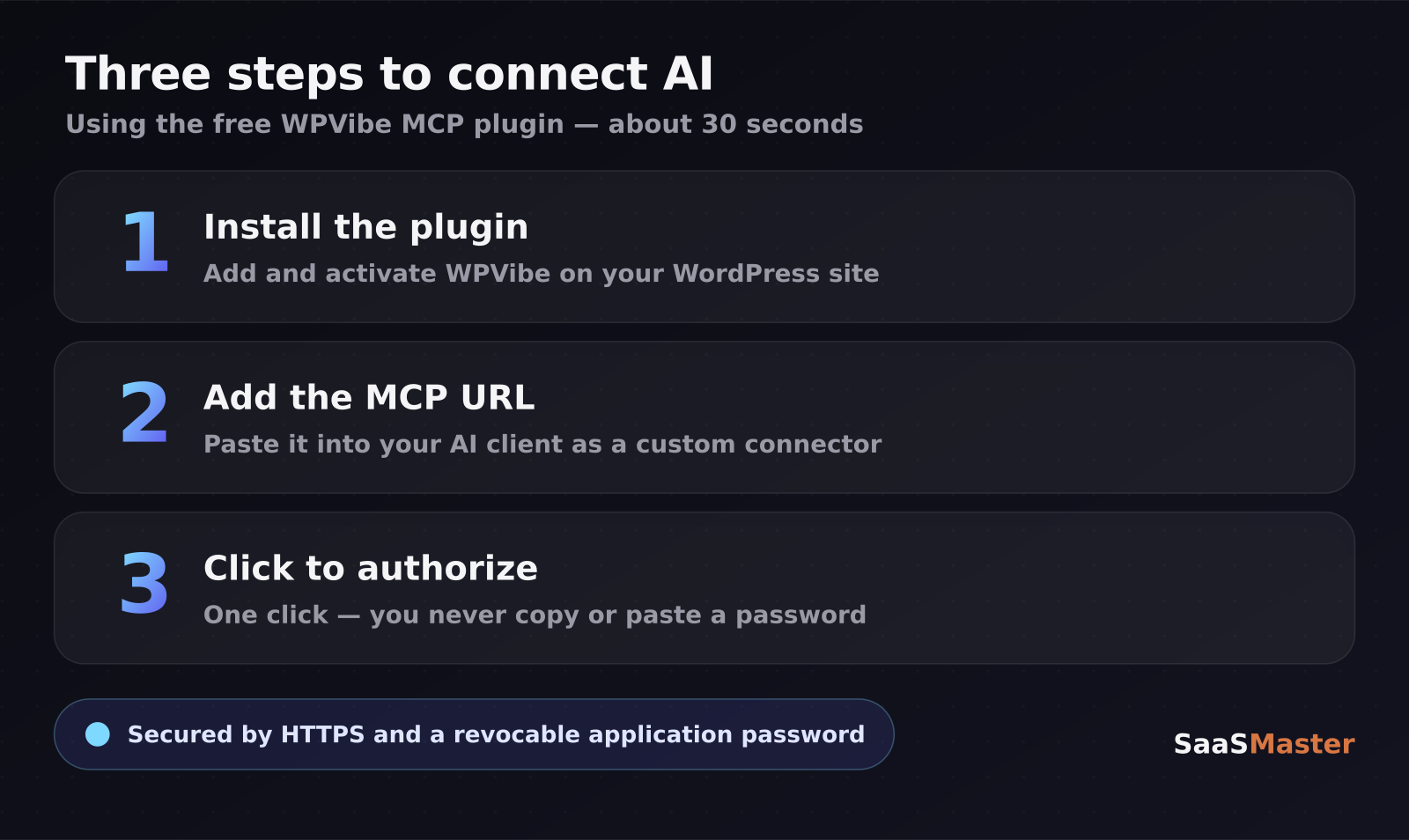
- Install the plugin. Add and activate the free WPVibe plugin, then create a free WPVibe account during setup. Your site must be on HTTPS, because WordPress application passwords require SSL.
- Add the MCP URL to your AI client. In Claude, open Settings, go to Connectors, add a custom connector, and paste the WPVibe MCP server URL. In ChatGPT, the simplest route is the official WPVibe app in the ChatGPT app directory — add it and click Connect.
- Authorize the connection. Back in your dashboard under Vibe AI, copy the ready-made prompt that already has your site's URL filled in, paste it into your AI chat, and the assistant returns a one-click authorization link. Click it to approve. You never see or copy a password — WordPress and WPVibe handle the credentials in the background.
That is the whole thing. For Claude specifically, the end-to-end setup really is about 30 seconds once your account exists.
Is it safe to give AI access to your WordPress site?
This is the part I would not skip. Giving an assistant write access to your live site is powerful and worth doing carefully.
- Keep it on HTTPS. WordPress application passwords will not function on plain http:// sites, and you would not want AI-driven changes flowing over an unencrypted connection anyway.
- Use the revocable application password. The connection is backed by an application password, not your login. If anything looks off, revoke it from your WordPress profile and access is cut instantly.
- Start read-only, then expand. Let the AI read and draft before you trust it to publish or delete, and keep a human in the loop for anything irreversible.
- Only connect assistants you trust. An AI reading your site content could, in theory, act on instructions hidden inside that content — a prompt-injection risk — so review actions rather than rubber-stamping them.
- Test on staging first. If your site is mission-critical, wire this up on a staging copy before you point it at production.
Handled this way, the risk profile is reasonable: least-privilege access, an easy kill switch, and a human approving the consequential moves.
What can you actually do once it is connected?
The point is to move real work out of wp-admin and into conversation. In practice that looks like:
- Draft and schedule posts from an outline or a rough voice note.
- Bulk-tidy categories and tags that have drifted over the years.
- Update site settings or menus without hunting through screens.
- Pull a quick content audit — what is thin, what is outdated, what to refresh.
For a solo creator, this is the difference between "I'll get to the blog later" and actually shipping. It is the same instinct behind turning a workflow into a short WordPress tutorial video — reduce the friction between intent and done.
What is coming in WordPress 7.1 for AI?
This capability is not staying in third-party-plugin land. WordPress 7.1, targeted for August 19, 2026 alongside WordCamp US in Phoenix, brings AI features closer to core. The roadmap adds streaming for generation responses and embeddings support for semantic and vector search in the AI Client, expanded authentication for connectors beyond plain API keys, and a new Guidelines primitive for steering AI behavior.
Two practical notes. First, the embeddings work matters because it powers smarter on-site search that understands meaning, not just keywords. Second, the ecosystem is standardizing fast — the AI Engine plugin, for example, is retiring its older SSE transport for MCP in July 2026 in favor of the newer streamable HTTP approach. Expect the setup steps above to get even simpler over the next few releases.
Who should (and should not) use this yet?
My take: if you are a solo creator or a small team drowning in content chores, connect AI to WordPress today — the time saved is immediate and the guardrails are solid. Start on staging, keep the assistant on a short leash, and expand its permissions as it earns trust.
If you run a high-traffic store or a client site with no staging environment and no appetite for surprises, wait a beat or pilot it on a sandbox. The technology is ready; the discipline around it is what keeps you safe.
Either way, the direction is clear. For more on picking the right assistant to plug in, see our comparison of the top Chinese AI models, explore the full WordPress guides library, and if you are stitching tools together, the no-code automation hub goes deeper.
Frequently asked questions
Do I need to know how to code to connect AI to WordPress?
No. With WPVibe you install a plugin, paste one URL into your AI client, and click an authorization link — no code required. The more technical MCP setups via Cursor or Windsurf exist for developers, but the everyday Claude and ChatGPT flow is designed for non-developers.
Is WPVibe free?
The WPVibe plugin is free, and you create a free WPVibe account during setup. It works with self-hosted WordPress sites that are on HTTPS. As with most tools in this space, expect paid tiers for higher usage or advanced features over time, but the core connection costs nothing.
Can the AI break my site?
It can make changes, so treat it with the same caution as any admin user. The safeguards are strong: access runs through a revocable application password, you can start with read-only behavior, and you should keep a human approving anything irreversible. Testing on a staging site first removes almost all of the risk.
Was this article helpful?
Jorge Aguilar
Founder & Creator, SaaS Master
Producing SaaS and AI product videos since 2019 — 800+ videos for 200+ brands, covering tutorials, demos, walkthroughs, and explainers. Writing here about the tools, trends, and tactics that actually move the needle. LinkedIn · About · Work with me
Launching a plugin, theme, or WordPress product?
Client-owned videos that make your product easy to understand — demos, walkthroughs, onboarding, and explainers.
Explore WordPress video productionRelated guides
More WordPress & Website Tools →
How to Use Angie, Elementor's Free Agentic AI Plugin for WordPress
How to Make a WordPress Plugin Demo Video That Drives Adoption
WooCommerce Product Video Setup Guide: Gallery Placement, Hosting, and What Converts