WooCommerce Product Video Setup Guide: Gallery Placement, Hosting, and What Converts
In short
The complete guide to WooCommerce product video setup: gallery placement, hosting, compression, cover frames, and what actually converts more sales today.
The fastest way to lift conversions on a WooCommerce product page is a short video that shows the product actually being used — not a plugin setting, not a theme choice. Get that one decision right and the technical setup takes about fifteen minutes; get it wrong and even a well-shot video will sit unwatched below the fold.
Key takeaways
- Show the product in real use, not on a plain background — that's what builds buying confidence, not production polish.
- Keep product videos under 60 to 90 seconds; shoppers want clarity, not a documentary.
- Host on YouTube or Vimeo and embed rather than uploading raw files, or your store's load time will suffer.
- Place the video above the fold, first in the gallery, with a compelling static cover frame.
- Compress everything — an uncompressed upload is the single most common WooCommerce video mistake.
Why does a WooCommerce product page need a video at all?
Because most shoppers would rather watch than read. Across multiple 2026 ecommerce studies, a strong majority of consumers say they prefer video over text or static images when learning about a product, and a large share report that watching a product video directly influenced a purchase decision. On product pages specifically, listings with video have been shown to convert meaningfully better than listings without — some studies put the lift as high as 80 percent, others in the 20 to 60 percent range depending on category and video quality. The honest takeaway isn't a single magic number; it's that video is one of the highest-leverage additions you can make to a WooCommerce listing, consistently across every study that's measured it.
What kind of video actually converts on a product page?
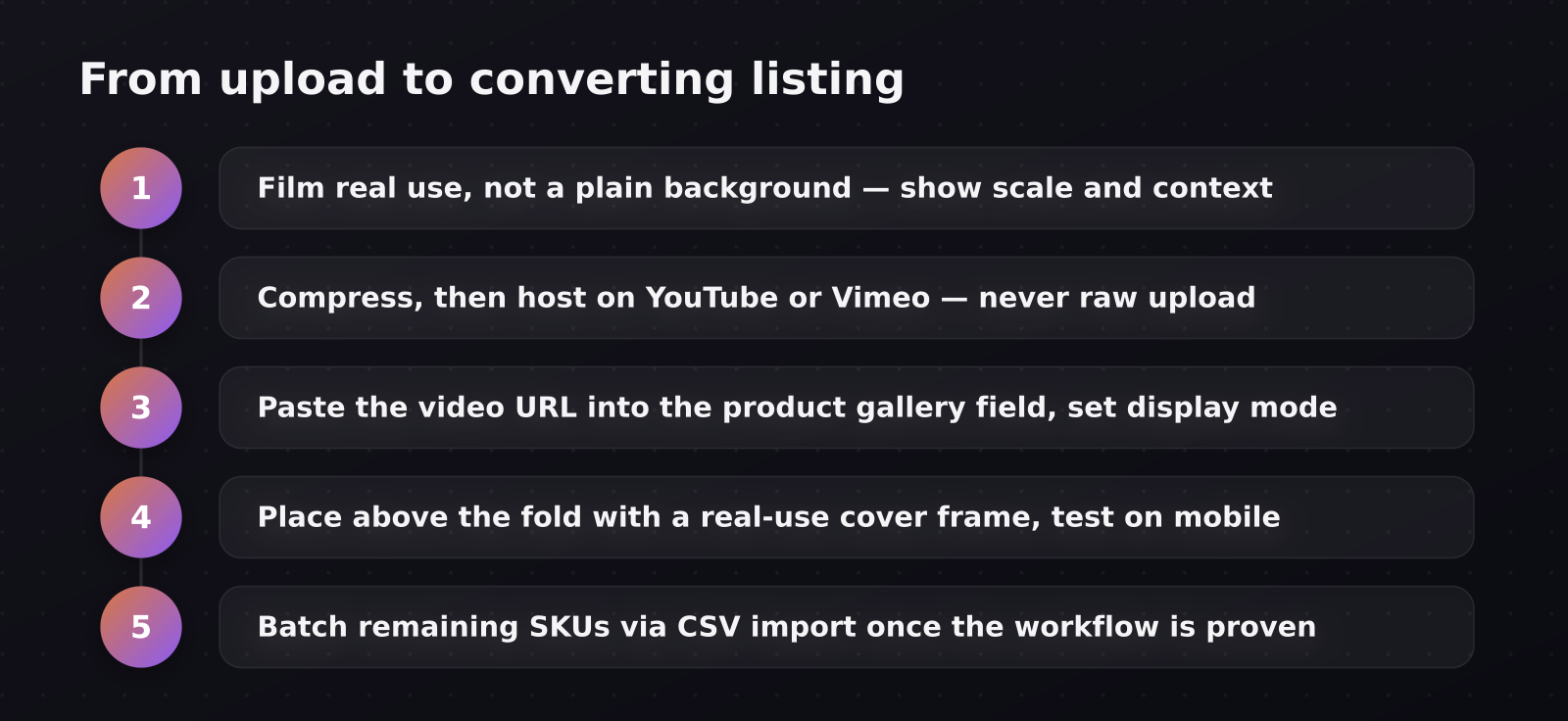
Real use beats a clean shot every time. A candle spinning on a white background tells the shopper nothing they couldn't get from a photo. The same candle burning on a real side table, at real size, next to a coffee cup for scale, answers the three questions every shopper is silently asking: how big is it, what does it look like in a space like mine, and does it work the way the description claims. For software-adjacent products sold through WooCommerce — plugins, themes, digital templates — the same rule applies in a different form: show the plugin running inside an actual WordPress dashboard, not a slide describing its features.
Keep it short. Sixty to ninety seconds is enough to answer those questions without testing the shopper's patience. If you're demonstrating a plugin or theme with more going on, it's fine to run slightly longer, but treat 90 seconds as the point where you should be cutting rather than adding.
How do you actually add video to a WooCommerce product gallery?
There are two paths, and the right one depends on how many products you're doing this for.
For a handful of products, a video plugin built for WooCommerce galleries is the simplest route. Install the plugin, open the product editor, paste your hosted video URL (YouTube or Vimeo, not a raw upload) into the video field, choose how it displays — inline in the gallery, as a lightbox popup, or autoplay on hover — and save. Preview the product page before publishing to confirm the video loads where you expect it, especially on mobile, where gallery layouts often behave differently than desktop.
For a full catalog, work from a template. Set your video field mapping once in the plugin, then batch-add video URLs through a CSV import or bulk editor rather than opening each product individually. This is where most stores actually stall out — not the first video, but videos two through two hundred — so it's worth setting up the bulk workflow before you start filming rather than after.
Either way, host the file itself on YouTube or Vimeo and embed it. Uploading raw video files directly to your WordPress media library is the most common performance mistake in WooCommerce video setup: large files slow down the exact page you're trying to optimize, which can undo the conversion gain you were chasing in the first place.
Where should the video sit, and what should the cover frame show?
Above the fold, and first or second in the gallery order — not buried after five product photos. A shopper who has to scroll to find your video will often never see it. Use a cover frame that shows the product in use, not a paused mid-motion blur or your logo; the cover image is effectively an ad for the video itself, and it should earn the click the same way a YouTube thumbnail does.
Autoplay is a judgment call. Muted autoplay on hover works well for desktop browsing behavior, but on mobile, where data and attention are both scarcer, a tap-to-play thumbnail generally outperforms autoplay because it respects the shopper's choice to engage.
What's the biggest technical mistake stores make?
Skipping compression. A video shot on a modern phone can easily run several hundred megabytes before compression, and adding that file weight to a product page — one of the pages closest to the point of purchase — directly increases bounce rate on exactly the traffic you worked hardest to earn. Compress before upload, or better, let your video host do it by embedding rather than self-hosting. This single fix resolves most of the "the video made my site slow" complaints store owners run into after their first attempt.
Building this into a real content system
A handful of product videos is a good start; a store with dozens of SKUs needs a repeatable workflow, not a one-off project. That means a consistent shot list (real-use angle, scale reference, cover frame), a consistent host and embed setup, and a naming convention that makes bulk updates manageable as your catalog grows. If you're weighing video against other WordPress content priorities, the WordPress Video Marketing Guide covers how product video fits alongside plugin demos and theme walkthroughs for WordPress-based businesses. And if your store sells a plugin or theme rather than a physical product, the structure in How to Create a Product Demo Video That Converts is the more relevant format to study.
Filming fifty product videos with consistent lighting, framing, and pacing is where most store owners run out of time before they run out of SKUs. That's the exact gap WordPress video production work is built to close — a repeatable shoot and edit workflow so your entire catalog gets the same quality bar, not just the first ten products you had energy for.
Frequently asked questions
Do I need a professional camera to film WooCommerce product videos?
No. A recent smartphone with good lighting produces perfectly usable results — natural window light or an inexpensive ring light matters far more than camera quality. Stability matters too: a small tripod or a phone propped steady beats handheld footage every time.
Should every product in my store have a video?
Not necessarily every SKU, but prioritize your best sellers, your highest-return-rate items, and anything with a feature that's hard to describe in text or photos. Video pays off fastest where confusion or hesitation is currently costing you sales.
Where should I host my WooCommerce product videos?
YouTube or Vimeo, embedded into the product page rather than uploaded directly to WordPress. This keeps your page load fast, gives you built-in compression, and in the case of YouTube, adds a small discovery channel on top of the sale itself.
Was this article helpful?
Jorge Aguilar
Founder & Creator, SaaS Master
Producing SaaS and AI product videos since 2019 — 800+ videos for 200+ brands, covering tutorials, demos, walkthroughs, and explainers. Writing here about the tools, trends, and tactics that actually move the needle. LinkedIn · About · Work with me
Launching a plugin, theme, or WordPress product?
Client-owned videos that make your product easy to understand — demos, walkthroughs, onboarding, and explainers.
Explore WordPress video productionRelated guides
More WordPress & Website Tools →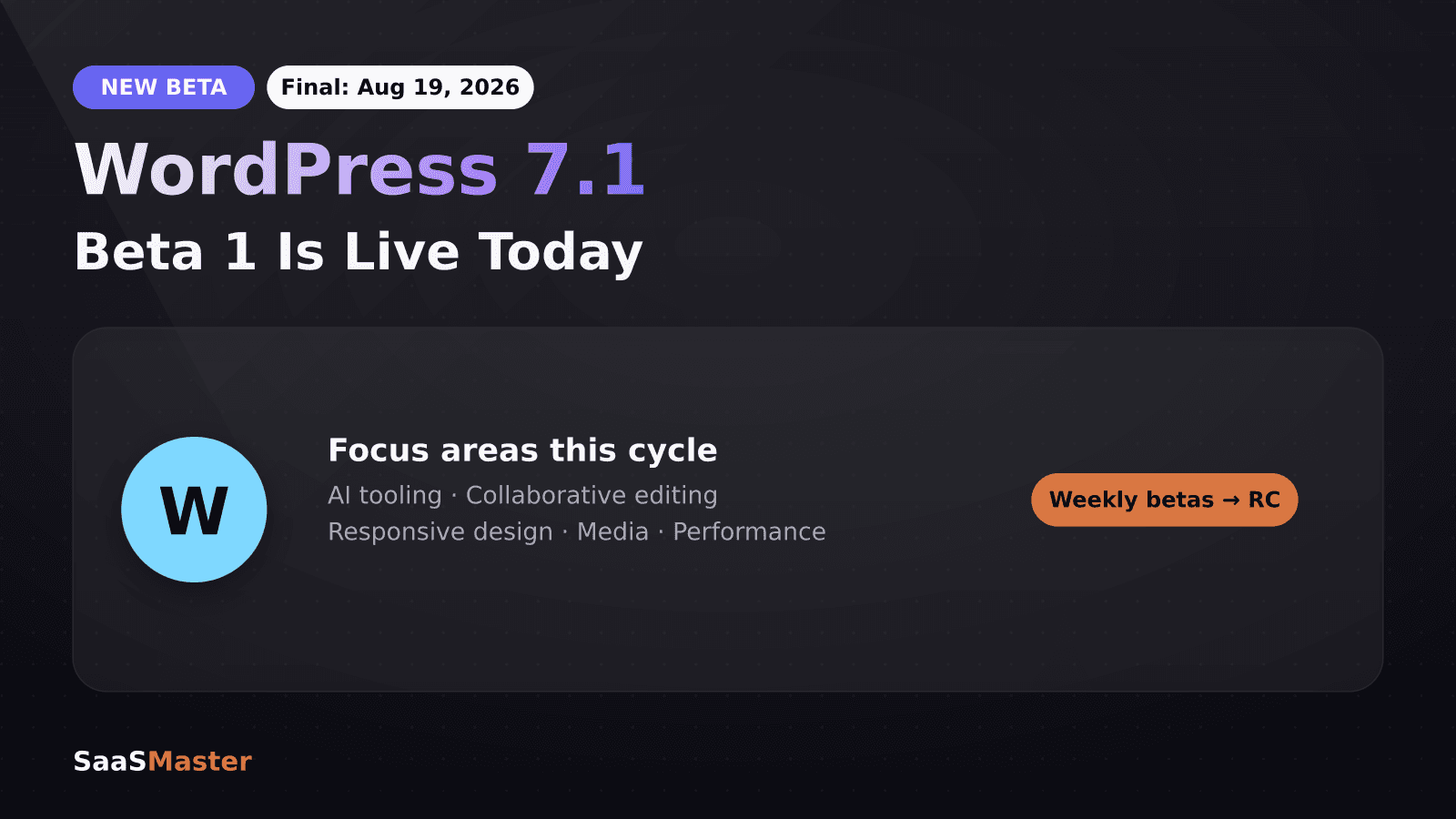
WordPress 7.1 Beta Is Live: What Site Owners and Plugin Developers Need to Know

Bunny.net for Video Hosting in 2026: Is It Finally Smarter Than Vimeo or Wistia?

Independent Analytics Review 2026: WooCommerce Tracking Without Google